 Libzbook
Library management
Staff Permissions for Study Libraries: Who Should See What
Give front desk staff, managers and accountants only the access they need, keep a record of who changed what, and recover from mistakes in your study library.
One shared login is a risk
Many libraries start with one login that everyone uses. It is convenient until something goes wrong. A student record disappears, a payment is edited, or the front desk can see the month's profit. With a shared login, nobody can say who did it, and anyone at the desk can do anything.
Separate logins with the right permissions solve three problems at once: staff can do their job, sensitive information stays with you, and every change can be traced to a person.
Start from jobs, not people
List the jobs in your library and what each needs to do:
| Job | Usually needs | Usually does not need |
|---|---|---|
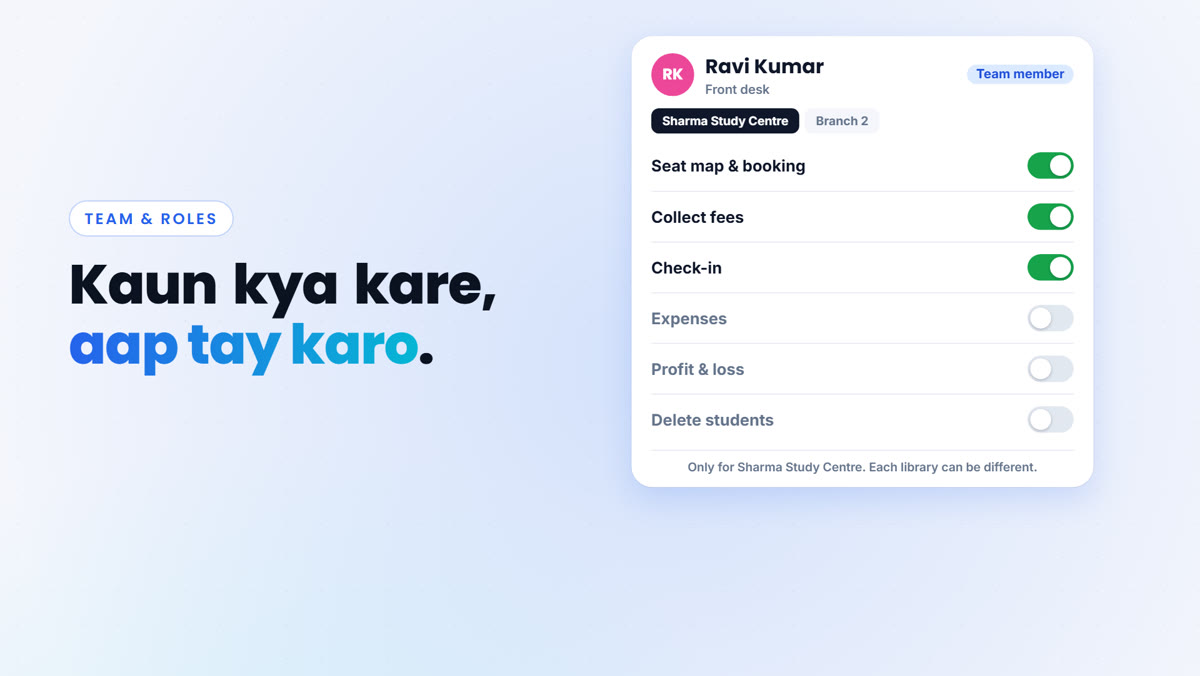
| Front desk | Seat map and bookings, collecting fees, check-in | Expenses, profit and loss, deleting records |
| Branch manager | Everything for their branch, approving requests | Other branches, staff salaries |
| Accountant | Invoices, expenses, reports | Changing seats or students |
Turn each job into a role. When someone new joins, give them the role instead of choosing permissions from scratch. If one person needs a small exception, give or block that single permission for them alone.
Limit access by branch
If you run more than one library, decide whether each person works in one branch or all of them. A manager for one branch should not change bookings or see collections for another. The same person can have different permissions in different branches when their job is different there.
In Libzbook, open Team & Access to add members and give them roles. A role is a set of permissions, and anyone with the role gets exactly those. Open a member to give or block one permission just for them, or to limit them to certain libraries. Viewing a page is needed for any other action on it, so giving edit access also gives view access.
Keep a record of who changed what
Even trusted staff make mistakes. An activity log that records each important action, with the person and the time, turns "who did this?" into a quick check instead of an argument.
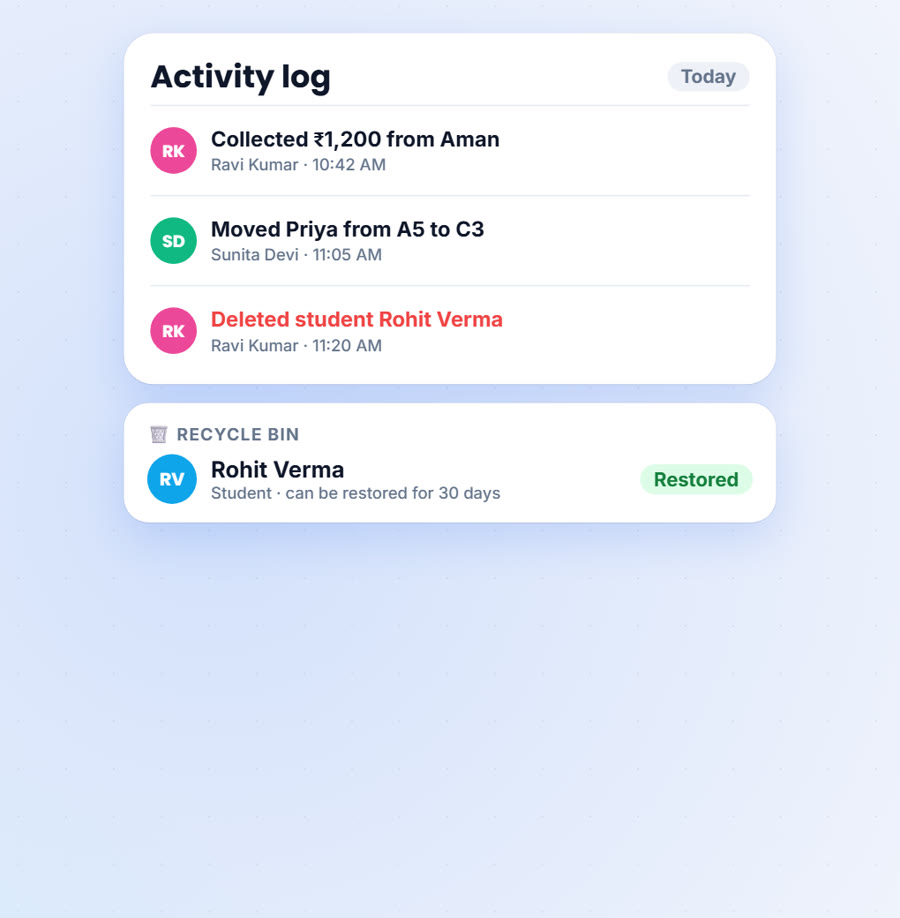
In Libzbook, admins can open Team & Access → Activity to see who did what, and when. Review it when something looks wrong, and glance at it weekly so staff know changes are visible.
Make mistakes recoverable
Deleting the wrong student or plan should not be permanent. Libzbook keeps deleted libraries, rooms, plans, students and study files in the Recycle Bin under Utilities for 30 days, where they can be restored. Deleting an item from the recycle bin removes it for good, so keep that action for admins. You can also export your data as Excel or PDF from Utilities whenever you want a backup.
Protect the owner account
Your own account can see and change everything, so protect it more carefully than any other:
- Turn on two-step sign-in. Libzbook supports codes from an authenticator app, SMS or email.
- Check your devices and sign-in history now and then, and change your password if you see a sign-in you do not recognise.
- Never share the owner login with staff. Give them their own accounts instead.
- When someone leaves, remove or pause their access the same day.
Review access every quarter
Roles drift over time: someone covers a shift and keeps extra access, or a person who left still has a login. Every few months, list your team members, their roles and their branches, and remove anything that is no longer needed. Pair this with a daily cash close so the money side is checked as carefully as the access side.
We make Libzbook, and the steps above describe how its team and access settings work today. The illustrations use sample names; they are not screenshots of a real library.